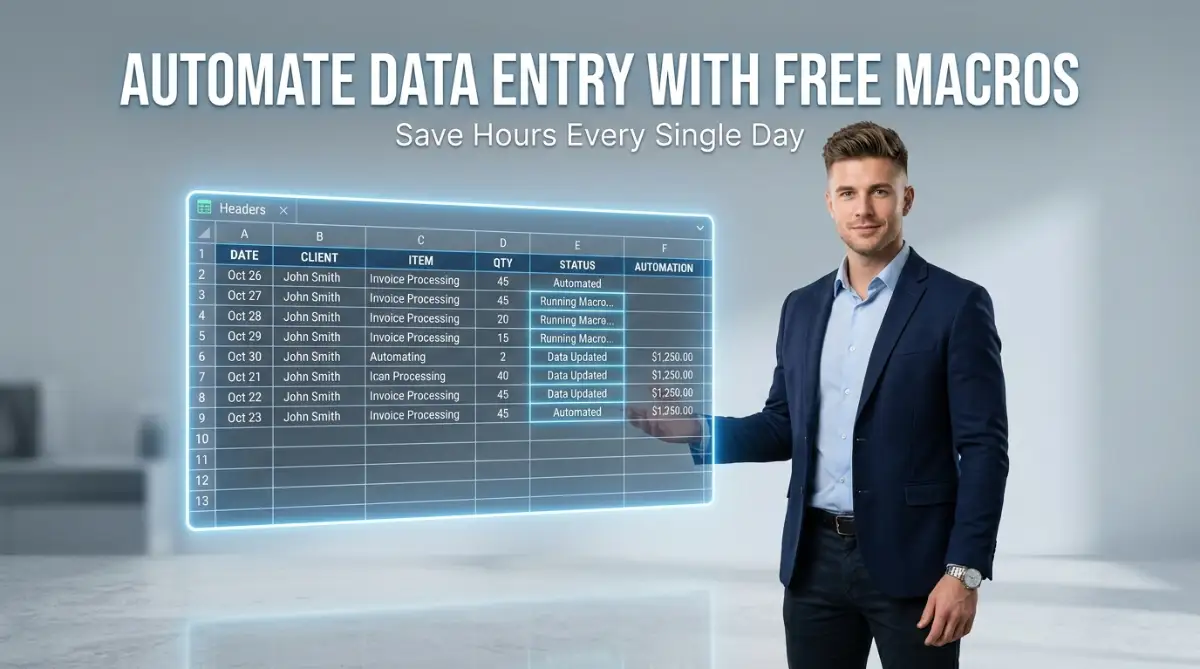
The Hidden Cost of Endless Copy-Pasting
I will never forget the night I missed my best friend's birthday dinner because I was stuck at my desk formatting a giant sales report. My eyes were burning as I manually copied and pasted hundreds of rows, feeling like my brain was turning to mush. I felt completely trapped by my own spreadsheet, wondering if I was going to spend the rest of my life acting like a human robot.
Imagine sitting at your desk while the sun slowly sets outside your window. The office is empty, and your coffee went cold an hour ago. You are still staring at a glaring screen, mindlessly copying numbers from one column and pasting them into another.
This is the harsh reality for thousands of office workers, small business owners, and freelancers. You did not study for years or start a business just to become a human robot. Yet, the heavy burden of manual data entry steals your most valuable asset: your time.
When you spend two hours every day sorting messy rows of data, you are losing energy that should go toward growing your career. That repetitive typing slowly drains your mental peace and leaves you feeling completely exhausted by dinner time. You might even find yourself making silly mistakes because your eyes are so tired from looking at tiny cells.
I have been in that exact situation. I remember feeling completely overwhelmed by end-of-month reporting, missing family dinners just to format a spreadsheet. It feels like a trap you cannot escape.
But what if I told you that your spreadsheet software already has a built-in, invisible assistant waiting to help you? You do not need to buy expensive software or hire extra help. Free spreadsheet macros are right there, ready to do the heavy lifting for you while you sit back and watch.
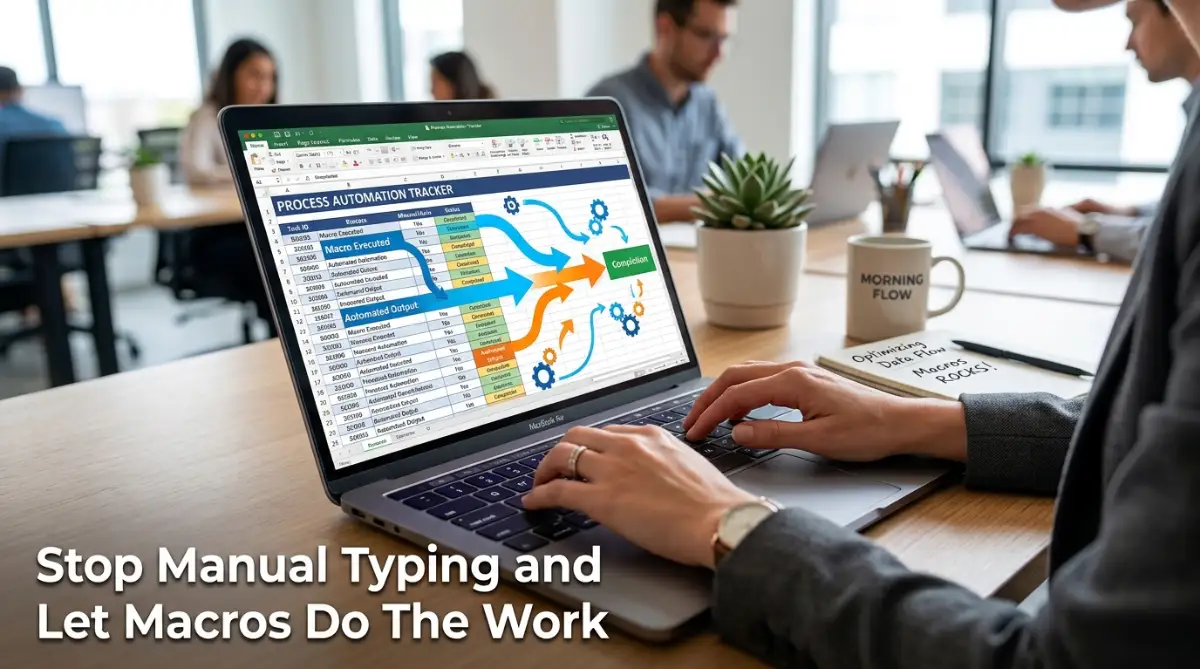
The Smart Way Out: Your Blueprint for Spreadsheet Automation
Many people get scared when they hear the word "macro." They immediately think of complicated coding, hackers in dark hoodies, or expensive software tools. Let me clear up that myth right now.
A macro is simply a tape recorder for your mouse clicks and keyboard strokes. That is all it is.
When you turn on the macro recorder, the spreadsheet pays attention to every action you take. Once you stop recording, you can click a single button, and the software will repeat those exact steps instantly. You can apply this simple trick to almost anything, from formatting daily sales reports to organizing your personal monthly budget.
Let's break down exactly how you can set up this magical automation tool today.
Preparing Your Workspace for Automation
Before you can record your first macro, you need to uncover the hidden recording tools. Most popular spreadsheet programs, like Google Sheets and Microsoft Excel, hide these features by default to keep the interface looking clean.
If you are using Google Sheets, the process is incredibly simple. You just need to click on the Extensions menu at the top of your screen. From there, you will clearly see an option labeled Macros. This is your control center for saving time.
For Excel users, you have to enable the hidden Developer tab. Simply right-click anywhere on your top menu ribbon and select "Customize the Ribbon." Check the box next to "Developer," and suddenly, a whole new world of automation opens up for you.
If you are more of a visual learner, watch this quick video below to see exactly how I uncover these hidden tools and set up my first macro in just a few minutes, then keep reading below the video to learn my favorite automation tricks!
Planning Your First Recorded Sequence
The biggest mistake beginners make is rushing into the recording phase without a plan. You must know exactly what steps you want to take before you press that record button.
Grab a physical piece of paper and a pen. Write down the exact clicks you need to make. Do you need to delete the first three rows? Write it down. Do you need to make the top row bold and add a yellow background? Note that down too.
When the recorder is running, it captures everything. If you make a mistake and click the wrong cell, the macro will record that mistake. Having a clear written plan prevents these awkward errors and ensures your automated workflow runs perfectly.
When I first started playing with automation, my biggest mistake was thinking I could just wing it and record everything perfectly on the first try. I ended up recording myself clicking the wrong buttons and making a huge mess of my real data. Now, I always practice my exact mouse clicks a few times before hitting that record button, and it saves me so much frustration.
Using Macros for Personal Finance Organization
Let's look at a practical, real-life scenario where macros can save you a massive headache. Suppose you are trying to organize your personal finances. You might be downloading huge data files from your bank every single week to track your spending habits.
Sorting through those endless rows of transactions to figure out your debt payments can be incredibly stressful. For example, if you are working on a solid education debt forgiveness strategy, you absolutely need accurate, well-formatted records of every payment you make.
Instead of manually highlighting your student loan payments every month, you can record a macro. You simply teach the spreadsheet to automatically search for the word "Loan," highlight that row in green, and move it to a separate tracking tab. A task that used to take you forty minutes now takes exactly two seconds.
The Power of Relative References
When you start using macros, you will notice a small option called Relative References. This might sound like confusing technical jargon, but it is actually the secret weapon of spreadsheet automation.
By default, macros use "Absolute References." This means if you record a macro that deletes cell A1, it will always delete cell A1, no matter where your mouse is resting. This is great for fixed reports, but terrible for dynamic data.
When you turn on Relative References, the macro pays attention to where your mouse is currently located. If you tell the macro to move down two spaces and bold the text, it will do that starting from wherever you clicked last. This simple switch turns a rigid recording into a highly flexible tool.
Automating Complex Financial Audits
Let me share another brilliant use case for this tool. Many people use spreadsheets to monitor their credit health and dispute errors. In fact, following a step-by-step guide to cleaning up mistakes on your credit report requires extreme attention to detail and intense organization.
You will likely receive multiple data dumps from different credit bureaus. These files are always messy and formatted differently.
You can create a custom macro for each credit bureau. Whenever you paste their messy data into your sheet, you just press your assigned shortcut key (like Ctrl+Shift+E). Immediately, the macro will remove empty rows, align the dates, and highlight the negative accounts in red so you can take action immediately.
This level of automation gives you total control over your data. You no longer have to fear messy spreadsheets, because your automated assistant cleans them up for you.

Taking Your Automation Skills to the Next Level
Once you successfully record and run your first few macros, you will experience a massive sense of relief. However, basic recording is only the beginning of what you can achieve.
To truly master daily data entry tasks, you need to understand how to edit your recorded steps. You do not need a computer science degree to do this. Both Google Sheets and Excel allow you to look at the simple code generated by your recording.
If you ever want to see exactly how this background code works, I highly recommend checking out official resources. For instance, the Microsoft Support documentation provides incredibly clear guidelines on viewing and modifying your recorded actions.
Tweaking the Background Instructions
When you open the macro editor, you will see your actions written out in plain text. It might say something like Selection.Font.Bold = True. Even without knowing how to write code, you can easily guess what that line means.
Let's say you recorded a macro to change a cell's color to blue, but your boss suddenly wants all reports in green. Instead of re-recording the entire fifteen-minute process, you can simply open the editor. You just find the word "Blue" and type "Green" in its place.
This simple editing trick saves you from having to be perfect during your recording phase. You can always go behind the scenes and fix minor details later.
Combining Multiple Macros Together
As your daily tasks get more complex, you might find yourself needing several different macros. You might have one macro for sorting dates, another for calculating totals, and a third for creating a clean summary table.
Instead of clicking three separate buttons, you can easily combine them into one master button. You can open your macro editor and simply tell your main macro to "Run Macro 1", then "Run Macro 2", and finally "Run Macro 3".
This is incredibly useful for major financial calculations. For example, if you are comparing different loan options, you need to process a lot of variables. When trying to understand the benefits of having a co-signer for your low-interest personal loan, you can use a master macro to instantly generate multiple comparison tables. With one click, your screen fills with beautifully formatted scenarios, helping you make the best financial decision instantly.
Assigning Trigger Buttons and Shortcuts
Nobody wants to dig through menus just to run an automation. The best way to use macros is by assigning them to simple triggers right on your spreadsheet.
You can actually draw a nice, colorful shape in your spreadsheet, like a rounded rectangle. Right-click that shape, and you will see an option to "Assign Macro." Now, this simple shape becomes a powerful, interactive button on your dashboard.
Alternatively, you can assign custom keyboard shortcuts during the recording phase. Pressing Ctrl + Shift + Q is much faster than looking for a button. This makes your workflow feel incredibly smooth and professional.
The Dangerous Traps of Data Automation
While macros are incredible time-savers, they can also cause massive headaches if you are not careful. When a machine does exactly what you tell it to do, a small error in your instructions can destroy your data instantly.
Here are the most severe mistakes beginners make, and exactly how you can avoid them.
Never, ever run a brand new macro on your original master file. This is the number one rule of spreadsheet automation.
Unlike typing a number manually, you cannot always use the "Undo" button after running a macro. If your macro accidentally deletes fifty columns of essential client data, pressing Ctrl+Z might not bring it back. You could lose weeks of hard work in a fraction of a second.
Always create a duplicate copy of your file before testing your new automation. Let the macro run on the test copy first. Only when you are 100% sure it works perfectly should you use it on your real data.
Ignoring Changing Data Structures
A recorded macro memorizes exact cell locations. If you tell it to always copy the total sum from cell D10, it will always look at D10.
However, what happens if next month's report has an extra row, pushing your total sum down to D11? Your macro will blindly copy D10, grabbing the wrong information completely. This can lead to disastrous business decisions or severe financial miscalculations.
This happens frequently when managing long-term debt plans. If you are tracking your journey and trying to follow smart strategies for student loan consolidation, your monthly data rows will constantly shift as balances change. You must use relative references or dynamic tables so your macro always finds the correct data, no matter how much the rows shift around.
Overcomplicating the Recording Process
Many ambitious users try to record a single macro that does fifty different things at once. They will format text, insert formulas, create charts, and email the boss all in one recording session.
When a massive macro breaks, finding the specific error is nearly impossible. It is like trying to find a broken wire in a giant mansion.
Keep your automated steps short and modular. Have one macro for cleaning data, and a totally separate one for formatting it. This modular approach keeps your files stable and makes fixing errors incredibly easy.
Reclaiming Your Workday
You now hold the keys to completely transforming your daily routine. By taking just a few minutes to learn these free spreadsheet tools, you are giving yourself the gift of time.
You no longer have to fear those massive data dumps or repetitive monthly reports. You can let the spreadsheet handle the boring, repetitive tasks while you focus on creative problem-solving and growing your business.
Start small today. Pick just one incredibly annoying data entry task that you do every single morning. Turn on that macro recorder, perform the steps slowly and carefully, and save it. Tomorrow morning, press that shortcut key and watch the magic happen. You will wonder how you ever survived without it.Looking back, learning to automate my spreadsheets was one of the best choices I ever made for my mental health and my career. It finally gave me back hours of my free time to actually enjoy my life, and I promise it can do the exact same thing for you. Do not wait for another exhausting Friday afternoon; take ten minutes right now to set up your very first macro and get your freedom back.
Disclaimer: This article is for informational and educational purposes only. Always ensure you comply with your organization's IT and data security policies when enabling macros or running automated scripts on company networks. Always maintain secure backups of your important data before executing new spreadsheet automations.